
TikTok Slideshows for Course Creators
The angles, hooks, and formats that work for course creators and educators, generated in one click.
Updated


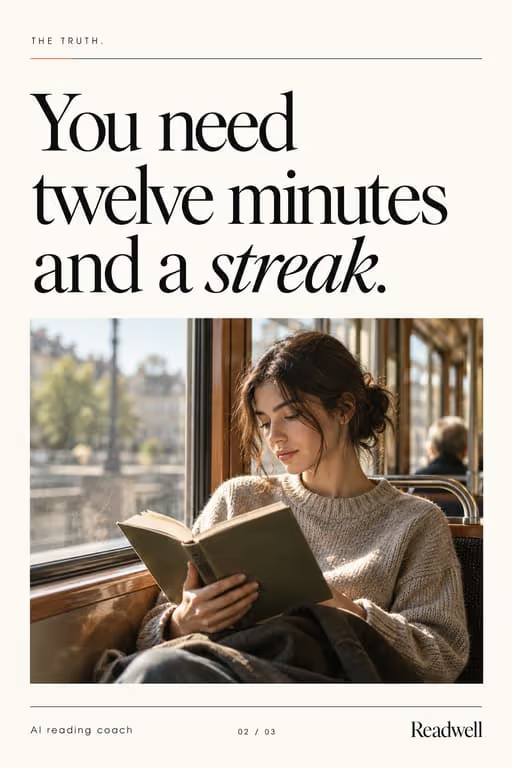
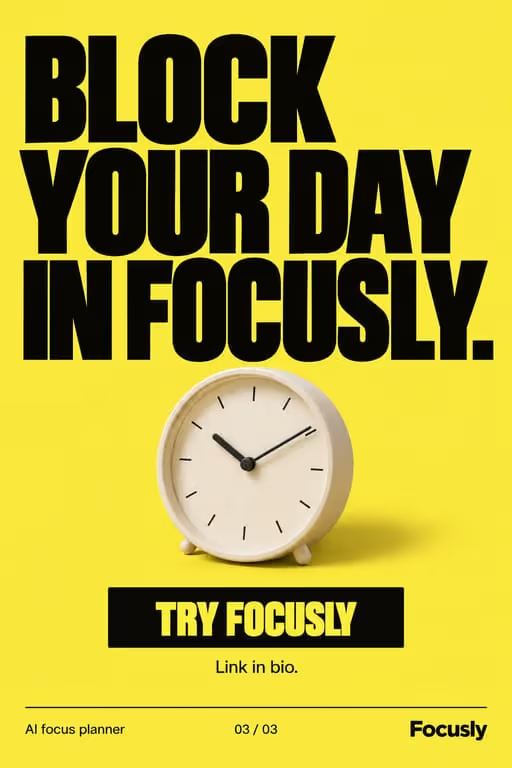

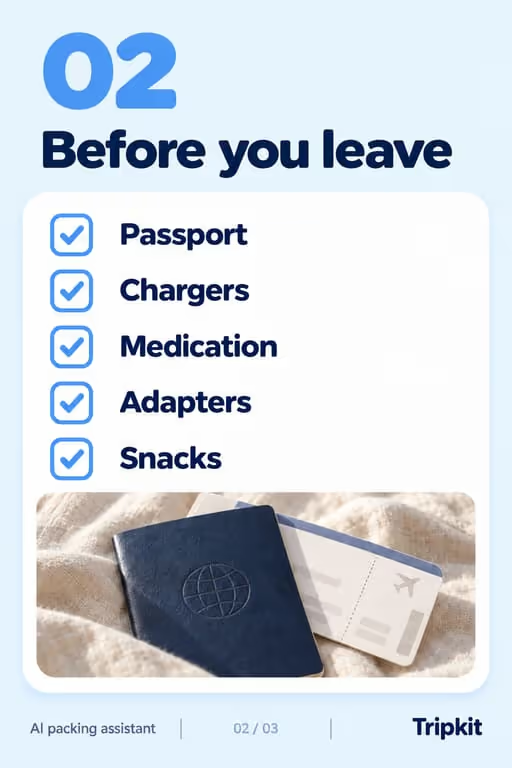
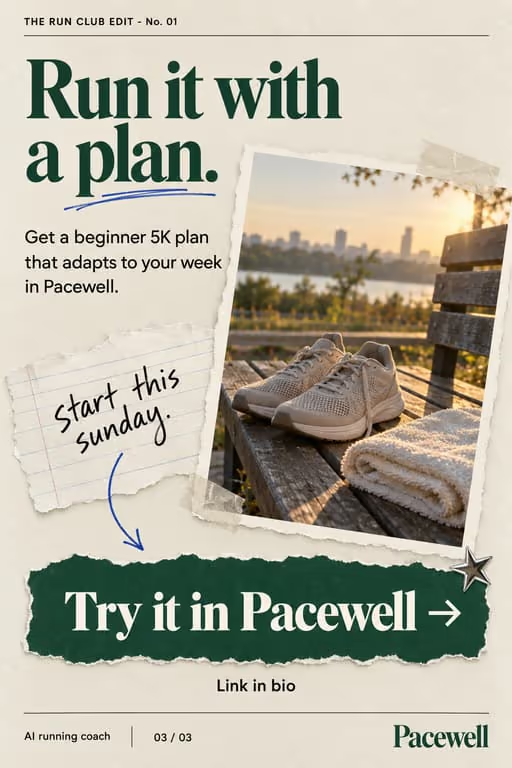


Teaching is your superpower. Slideshows let you give away a real lesson per post, prove your expertise, and pull the most engaged viewers toward your course. Value first, sale second.
Who you’re talking to
Your viewer wants a skill and is stuck at the beginning, often after a few free tutorials. They follow people who teach clearly and buy from the ones whose free lessons already worked for them.
What to post
- “Things I teach in my course” mini-lessons
- Mistakes beginners make in your topic
- A student result as a case study
- A checklist that previews your method
- A myth about your subject, corrected
- The tools you recommend to beginners, and why
Hooks that work for course creators
Need more? The hook generator for course creators has 18 ready-made hooks for this niche, each matched to a format, plus a free generator that writes new ones, for example “7 lessons I wish I knew sooner”.
Example slideshow for course creators, slide by slide
A free mini-lesson from a design course. Format: Listicle, 6 slides. An illustrative draft to adapt, not a real account’s post.
- Slide 14 design rules I teach in week one (save this lesson)
- Slide 21. Pick one font and use two sizes of it
- Slide 32. Leave more empty space than feels comfortable
- Slide 43. Align everything to one edge, not the middle
- Slide 54. Use one accent color, and only for the thing to click
- Slide 6Week two covers layouts. The full course is in my bio
Caption: the first lesson of my course, free. this alone fixes most beginner designs
A second example, in a different format
Beginner mistakes in your subject. Format: Mistakes to Avoid, 6 slides. An illustrative draft to adapt, not a real account’s post.
- Slide 14 mistakes every beginner designer makes
- Slide 21. Using five fonts in one design
- Slide 32. Filling every empty space
- Slide 43. Centering everything
- Slide 54. A button the same color as the background
- Slide 6My free first lesson fixes all four. Link in bio
Caption: i made every one of these. here's the fix
Proof and the last slide
Show student work shared with permission: a before and after, with what they changed. One real example with context is worth more than a wall of testimonials.
Closing lines to test
- “Save this lesson”
- “Comment your biggest struggle”
- “Free first lesson in my bio”
What to avoid
- Teasing instead of teaching. A slideshow that withholds the lesson reads as an ad and gets skipped.
- Student results without consent or context. Name what they did, how long it took, and that results vary.
- Selling on every post. Most posts should teach; the course link belongs in the bio and on one slide in a few posts.
Before you post
- Keep each slideshow to 6 to 9 slides, the range the listicle, mistakes to avoid and case study formats run in ViralSlides.
- Export every slide at 1080x1920 (9:16) as a JPEG. TikTok takes up to 35 photos per post (as of October 2026); the slideshow checker confirms a set before you upload it.
- Put the hook between 10% and 40% of the slide height and inside the left 78% of the width, where neither TikTok nor Reels draws its buttons or caption. The safe zone checker shows the exact areas.
- Post at a pace the account can hold. Our scheduler keeps a brand-new account quiet for its first days, ramps from one post a day, and never posts more than 4 times per account in 24 hours. The cadence planner works out yours.
FAQ
Won’t giving away lessons hurt sales?
Usually the opposite. Free value proves you can teach, and the people who want the full system buy the course.
How often should I post?
Consistency beats perfection. Generate a batch, then post at a pace you can keep for months.
Which lesson should I give away first?
The one that fixes the most common beginner mistake in your topic. It reaches the widest audience and shows your method.
Can one course module become several slideshows?
Yes. Each rule, mistake or example in a module can be its own post, and a series makes viewers follow for the next part.
Should I show the course price in the slideshow?
Rarely. Lead with the lesson and let the course page explain the price. A post that teaches earns more trust than one that sells.
Further reading for course creators
Make TikTok slideshows for course creators
Pick a format, give a topic, and get a ready-to-post slideshow in one click.